Learn with Tutorials
Tutorials are step-by-step lessons your teacher has prepared for a course. A tutorial mixes explanations, figures and videos with activities such as multiple-choice questions, short-answer questions with AI feedback, and polls. Your progress is saved automatically, so you can stop at any time and continue later.
Find your tutorials
-
Open your course and click the “Tutorials” tab at the top of the page.
-
Every published tutorial is listed with its latest version (“Rev.” number). Click “Open” to start or continue it.

Note: If a tutorial you expect is missing, your teacher may not have made it visible yet.
Move around a tutorial
-
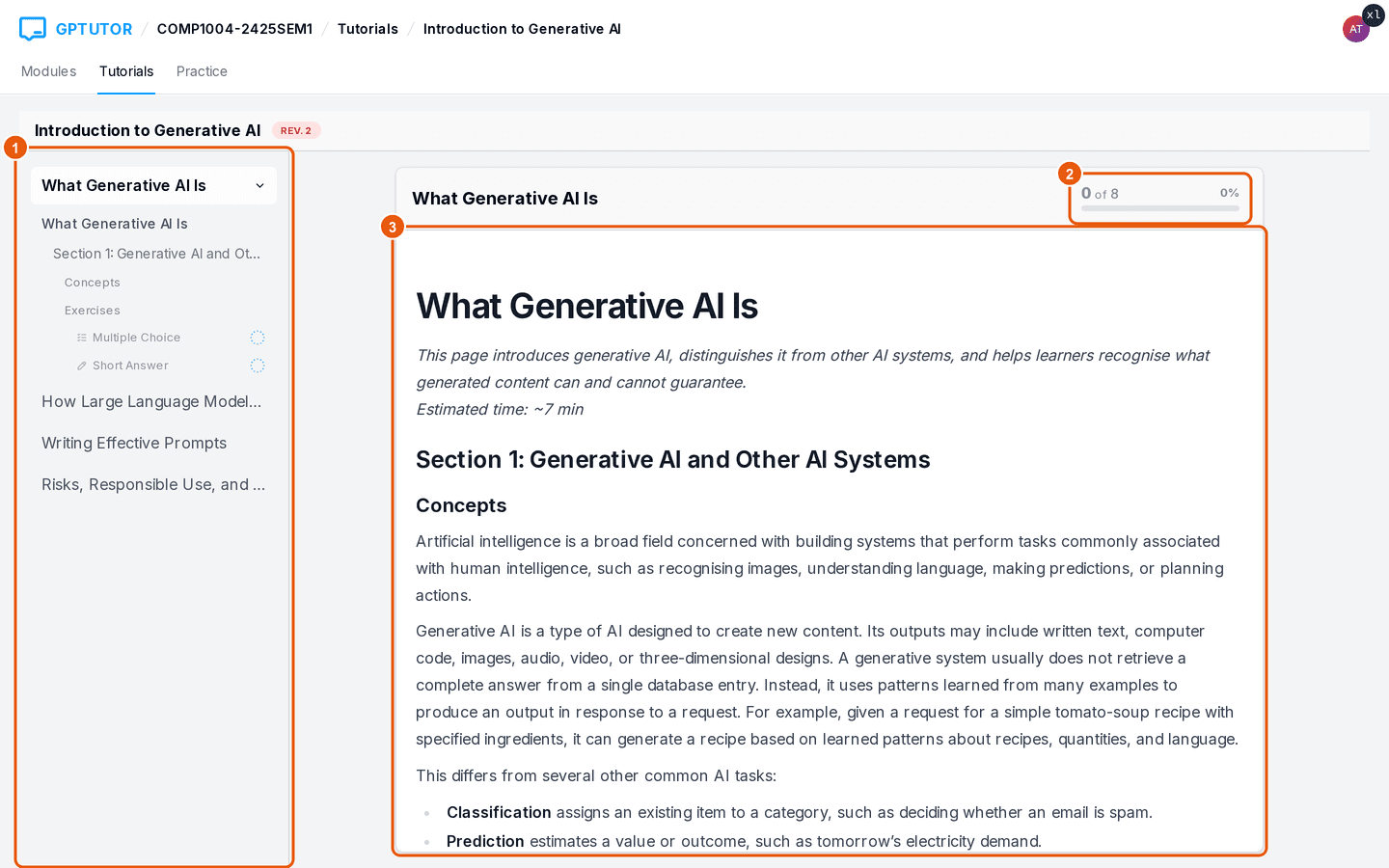
The left panel lists every page and section of the tutorial. Click a heading to jump to it; the small circles next to activities show whether you have completed them.
-
The bar at the top of the lesson shows how many activities you have completed on this page.
-
Read the lesson in the middle. Figures, videos and questions appear in place.
-
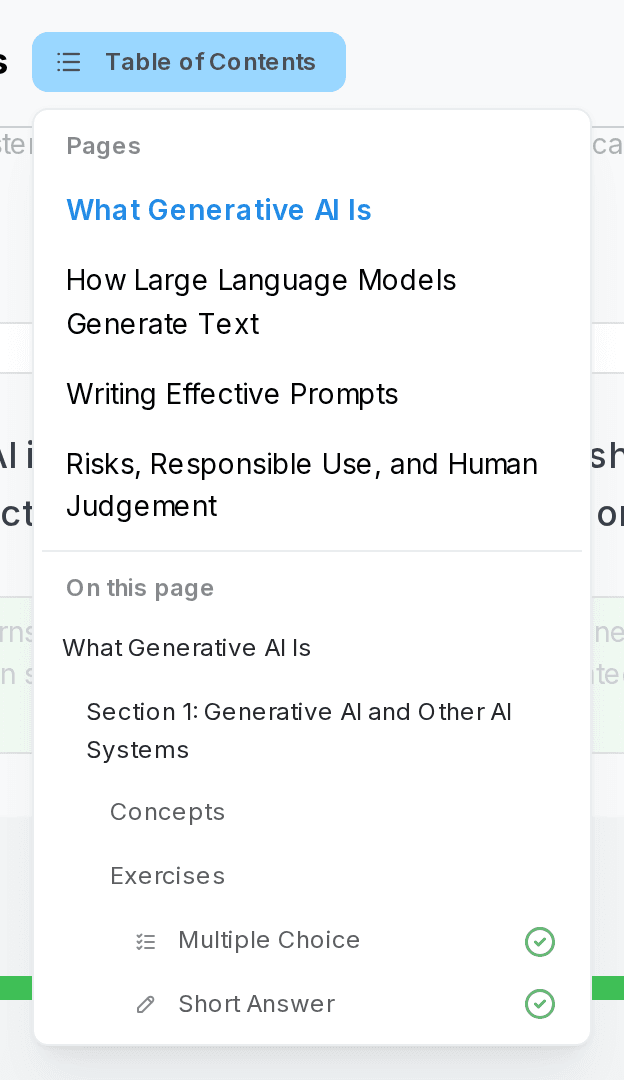
On a small screen the panel is replaced by a “Table of Contents” button above the lesson.
-
Tutorials with several pages have “Previous page” and “Next page” buttons at the bottom. When you follow a link that jumps to another page, a “Back to …” button lets you return to where you were.
Track your progress
-
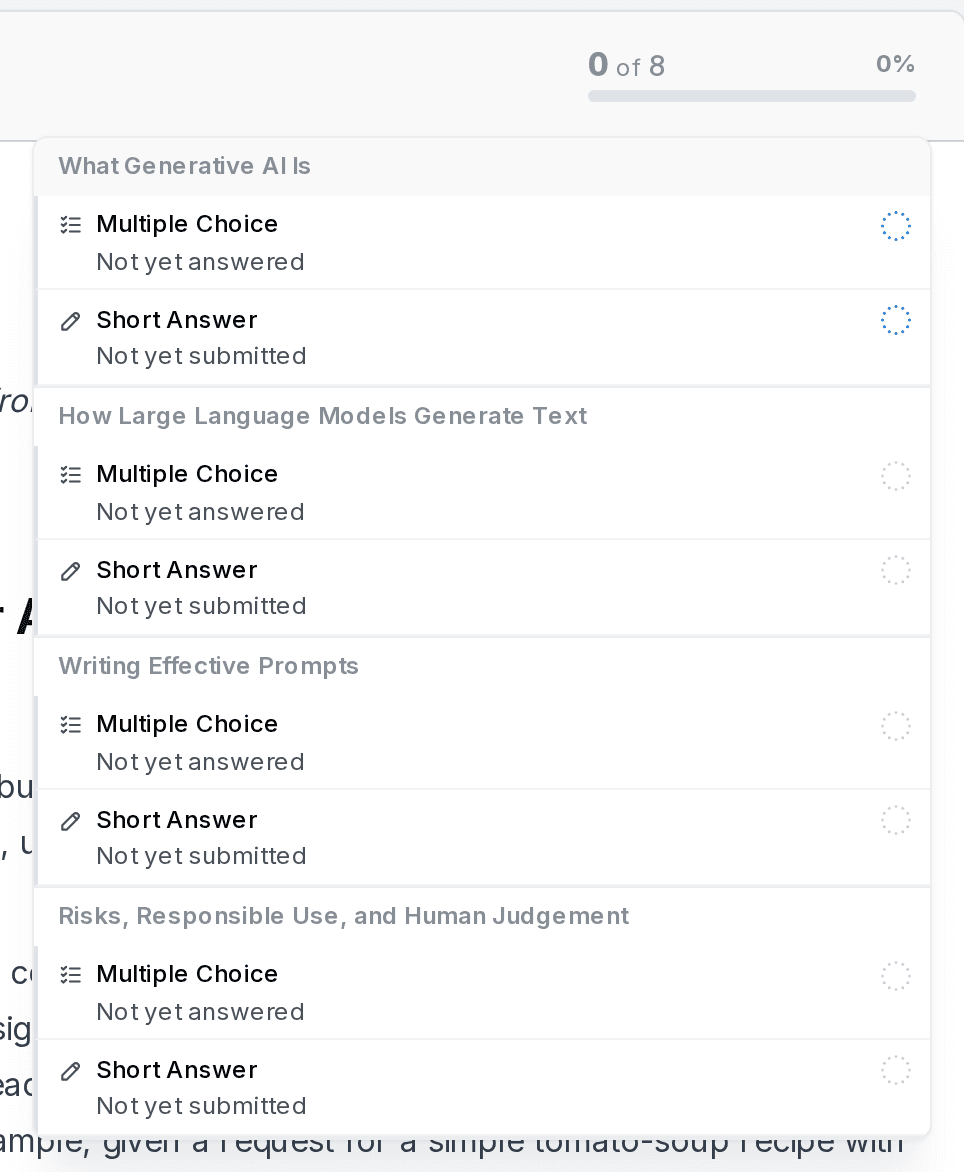
Click the progress bar to see every activity on the page, its status, and a link that scrolls to it. Activities marked “optional” do not count towards completion.
-
The bar turns green when you have completed everything on the page.
Answer questions
Multiple-choice questions
-
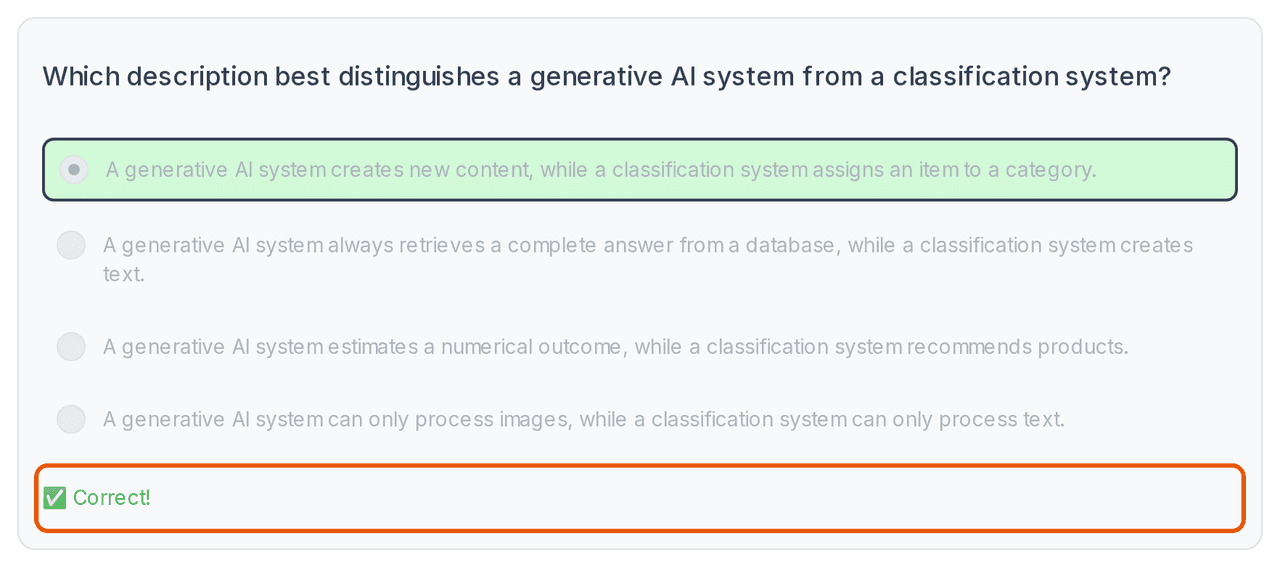
Click an option. You see immediately whether it is correct.
-
If it is wrong you can usually click “Retry”. After the last attempt the explanation is shown.
Short-answer questions
-
Type your answer in the box and click “Submit”.
-
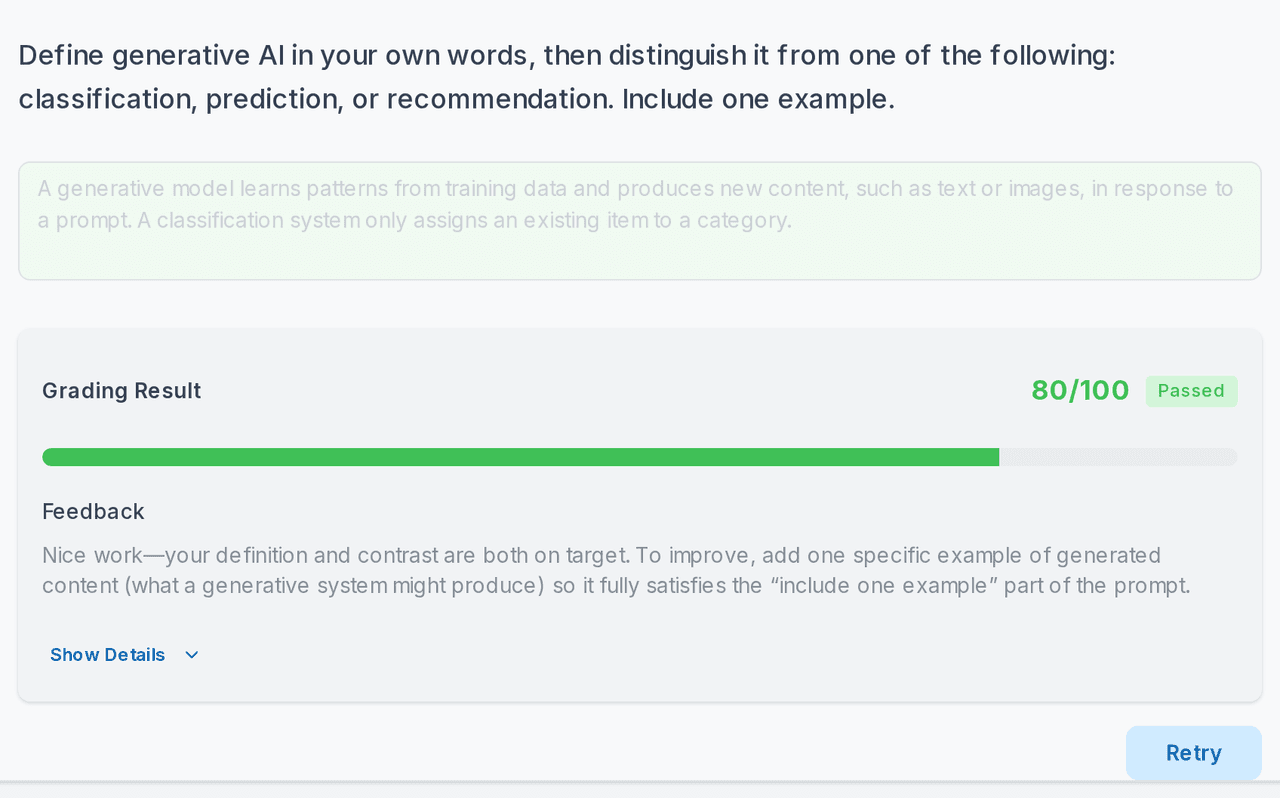
Some questions are graded automatically by AI. Wait a moment while “Grading your answer…” is shown.
-
The result tells you whether you passed, gives feedback, and — under “Show Details” — the score for each criterion. Your earlier answers are kept under “Previous Attempts”, and your best attempt counts.
Watch videos, chat with the AI tutor, join a poll
-
Videos remember where you stopped. Come back later and continue from the same moment. Some videos are trimmed to the part that matters for the lesson.

-
AI Chat lets you ask questions about the lesson. Type a message and press “Send”; click “Stop” to interrupt a long answer or “Clear chat history” to start over.
-
Polls ask you to pick one or more options and, sometimes, give a reason. Click “Submit vote”. If your teacher allows it you can change your vote later, and you may see how the class voted.
Leave and come back
-
Everything you do is saved as you go. Close the tab whenever you like; the tutorial reopens exactly where you left it.
-
When every activity is completed the tutorial shows “Session completed”.
-
If your teacher has allowed it, a “Restart Session” button lets you start the tutorial again from scratch. Restarting clears your answers.
When a tutorial is updated
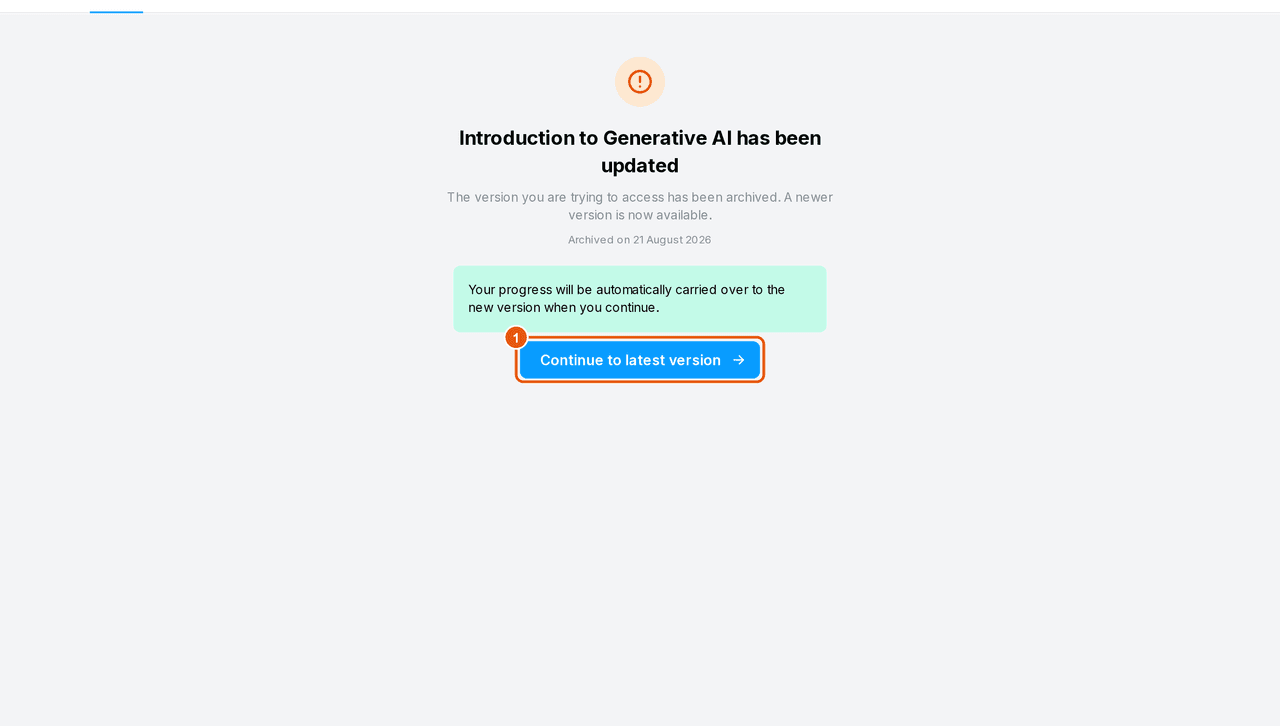
Teachers sometimes publish a new version of a tutorial. If you open an older version you will see a page telling you that the tutorial has been updated.
-
Click “Continue to latest version”. Your progress is carried over to the new version automatically.
Troubleshooting
| What you see | What it means / what to do |
|---|---|
| A tutorial is missing from the list | It has not been made visible to students yet, or it was taken down. Ask your teacher. |
| ”Failed to open learning session” | A temporary connection problem. Click “Retry”; if it persists, reload the page. |
| ”No active version is currently available” | The tutorial was taken down. Your progress is kept in case it comes back. |
| A question shows a “misconfigured” notice | The activity was not finished by the author. Skip it and let your teacher know. |
| ”Restart Session” is not shown | Your teacher has not allowed restarting this tutorial. |